Table of Contents
Overview
OneStrata's search integrations enable a simplified search advertising buying workflow:
| Description | |
|---|---|
| 1 | Create a Credential record for a Search provider, making sure to link a Supplier to the record |
| 2 | Build and commit a media schedule in OneStrata. Cost Lines with a Supplier linked to a Search provider become available on the Search dashboard. |
| 3 | On the Search dashboard, link a Cost Line to a new or existing external Search provider entity. |
| 4 | Within the search advertising platform, customize the linked entity as desired. |
| 5 | In OneStrata, view delivery metrics from the linked entity:
|
Search Providers
The following table lists the available Search providers and describes the mapping of OneStrata Cost Lines to linked Search provider entities:
Provider | OneStrata Entity to External Entity Linking | Recommended Documentation |
|---|---|---|
Google Ads | OneStrata Cost Line → Google Ads campaign |
Search Dashboard
On the Search dashboard, users can manage their Search integration and link Cost Lines to campaigns within a connected Search provider.
Once linked, the identifier of the search campaign—as used by the Search provider—is displayed in OneStrata, enabling a more seamless workflow between the media planning and search advertising teams.
Access the Search Dashboard
The Search dashboard is only available if a campaign contains at least one committed Cost Line that has a Supplier linked to a Search provider.
There are two ways to access the Search dashboard, depending on how many provider types have been assigned to the campaign overall:
| Assigned Provider Types | Action | |
|---|---|---|
| 1 | The only provider type is Search | Go to the campaign's External Integrations tab, which opens directly onto the Search dashboard. |
| 2 | There is more than one provider type |
|
Search Dashboard UI Elements
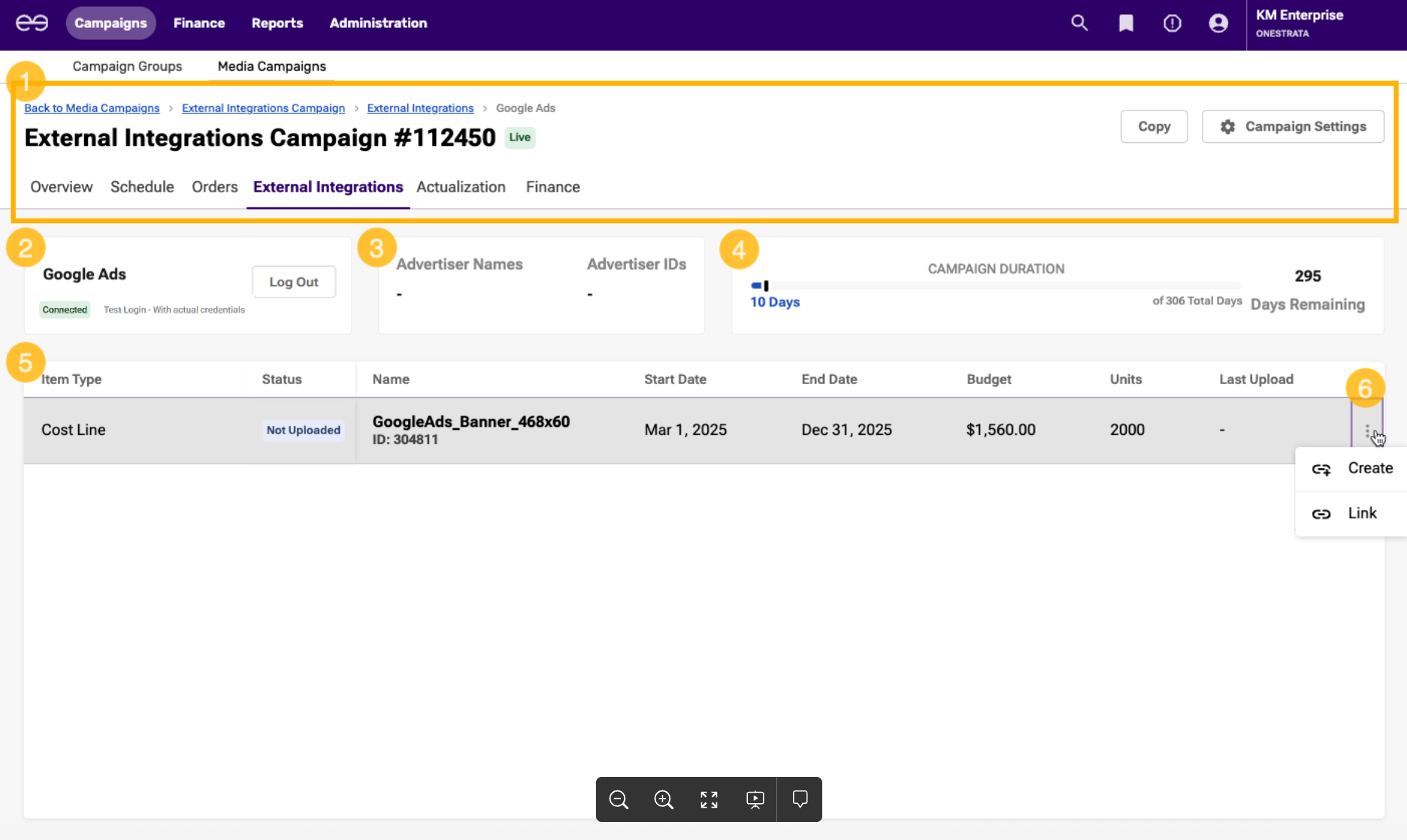
The Search dashboard contains the following elements:
| Item | Description | |
|---|---|---|
| 1 | Campaign header | The campaign header contains the name and ID of a campaign, information about campaign status, and access to campaign management tabs and settings. For more information, see Campaign Header Reference. |
| 2 | Provider Login section | View and manage the connection to the Ad Server provider:
|
| 3 | Campaign Details section | View information about the linked search campaign, if any.
|
| 4 | Campaign Duration section | View information about the duration of the OneStrata campaign, in terms of days elapsed and days remaining. |
| 5 | Search grid | A list of committed Cost Lines that can be, or have been, linked to a search campaign. For more information, see Search Grid Reference. |
| 6 | Row action icon (three vertical dots) | For a Cost Line, select the row action icon to:
For a linked search campaign, select the row action to:
|
Search Grid Reference
The Search grid displays, for a given campaign, the Cost Lines that can be linked or have been linked to an external search advertising campaign.
The table below describes the Search grid columns:
| Column Name | Description |
|---|---|
| Item Type | The type of the Search grid line:
|
| Status | The status of the Search grid line. For Cost Lines:
For search campaigns:
|
| Name | Name: The name of the Search grid line.
ID: For Cost Lines, the OneStrata identifier of the Cost Line. This value is populated from the corresponding Schedule grid line. EID (External ID): For search campaigns, the identifier for the campaign used by the Search provider. |
| Start Date | For Cost Lines only, the start date of the Search grid line. |
| End Date | For Cost Lines only, the end date of the Search grid line. |
| Budget | The budget of the Search grid line.
|
| Units | For Cost Lines only, the number of units being purchased for the Search grid line. |
| Last Upload | For search campaigns only, the date that the campaign was most recently uploaded (linked or updated). |
| Row Action icon | See Row Action icon above. |