Table of Contents
Overview
All Buyer Cloud customers have one or more unique seat IDs for configuring deals with SSPs. Your seat ID is passed in bid requests by SSPs and indicates that a deal is specific to a Buyer Cloud customer or account.
Accessing Seat IDs
Seat IDs can be accessed in the UI through the Admin module dropdown and Accounts page, or through the API.
Access Seat IDs in Admin Module Dropdown
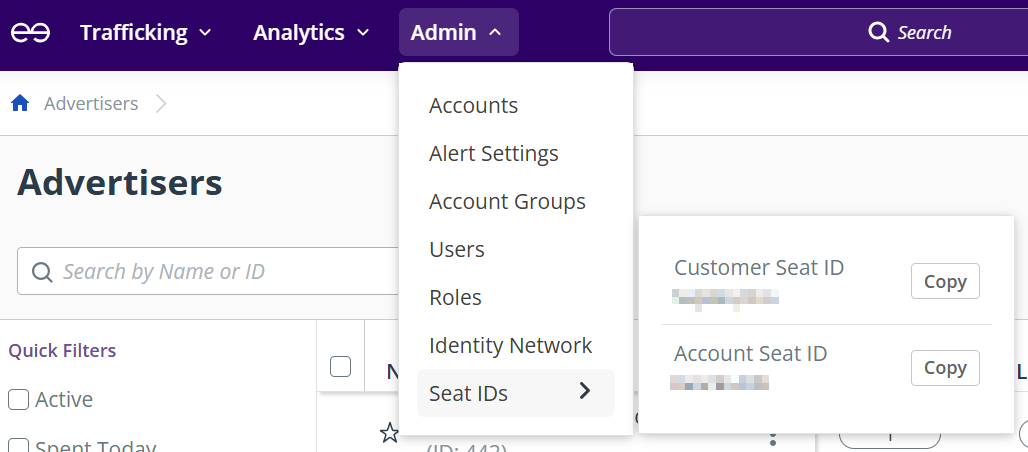
To view Customer Seat ID and Account Seat ID (if applicable):
- Hover over Seat IDs in the Admin module dropdown. Your Customer Seat ID and Account Seat ID (if applicable) are displayed.
If you have multiple accounts:
- The account Seat ID displayed is for the current account you are in, which is viewable in the top right of the navigation ribbon.
- To view your other Account Seat IDs, use the account dropdown in the navigation ribbon to select the account you wish to view the Account Seat ID for.
- Select Copy next to a seat ID to copy the seat ID to your clipboard.
Access Seat IDs in an Accounts Page
To view your seat ID(s), do the following:
- Go to Admin > Accounts.
- Open your account details page by doing one of the following:
If you have one Buyer Cloud account, select the Name & ID field in the list view.
If you have multiple Buyer Cloud accounts, select the Name & ID field of the desired account. - On the Overview Tab, the Customer Seat ID section (and Account Seat ID section, if applicable) is located at the bottom of the page.
Seat Types
There are two types of Seat IDs to use for configuring deals, explained below:
| Seat Type | Description | Usage |
|---|---|---|
| Customer Seat | Every customer receives a unique Customer Seat ID. | Use the Customer Seat ID when all accounts under the same customer are eligible to bid on a deal. |
| Account Seat | Customers with more than one account also receive a unique Account Seat ID per account. Customers with only one account only receive a Customer Seat ID. | Use the Account Seat ID when only a specific account is eligible to bid on a deal. |
Legacy Seat Taxonomy and Migration
On February 10, 2026, Buyer Cloud introduced a new seat taxonomy:
| Time Frame | Description |
|---|---|
Before February 10, 2026 Legacy seat taxonomy | By default, customers used a default Buyer Cloud seat when setting up deals, with individual customer seats available upon request. Legacy seats (both the default and customer seats) were SSP-specific, making seat management challenging because customers had to manage different seat IDs per SSP. |
After February 10, 2026 Unique seat taxonomy | Every Buyer Cloud customer is automatically assigned one or more seats, at the customer or account level:
These seat IDs are persistent across SSPs, meaning that customers only have to manage a single set of seat IDs when buying through Buyer Cloud. Note: The new unique seat IDs are rolled out in two phases. For more information, see Unique Seat ID Timeline. |
Legacy and Unique Seat Billing
The following table explains how the new unique seats are billed:
| Legacy Seat Billing Type | Unique Seat Billing Type |
|---|---|
Direct-billable seat | If your legacy seat with an SSP was direct-billable, your new seat with that SSP is also direct-billable. During the migration and re-creation of legacy deals, the SSP will use both your legacy seat ID and new unique seat ID for billing. |
Buyer Cloud-billable seat | If your legacy seat with an SSP was Buyer Cloud-billable, your new seat with that SSP is also Buyer Cloud-billable. During the migration and re-creation of legacy deals, Buyer Cloud will use both your legacy seat ID and new unique seat ID for billing. |
Unique Seat ID Timeline
The following table explains the timeline of the new unique seat taxonomy:
| Date | Unique Seat ID Availability | Recommended Action |
|---|---|---|
| February 10, 2026 | The new unique seat IDs can be used with FreeWheel only. To view your new seat ID(s), see Accessing Seat IDs. | Legacy seat IDs are still available and can be used normally. However, starting February 10th, we recommend using your new seat ID when creating new deals with FreeWheel. Existing deals with FreeWheel that use a legacy seat ID will be automatically migrated to your new seat ID starting March 2026. |
| March 12, 2026 | The new unique seat IDs can be used with all other SSPs. | Legacy seat IDs are still available and can be used normally. However, starting March 12th, we recommend using your new seat ID when creating any new deal. Existing deals that use a legacy seat ID will either be automatically migrated to your new seat ID or manually recreated with your new seat ID starting March 2026. |
Legacy Deal Migration and Re-Creation
A legacy deal is a deal created with a legacy seat ID. Depending on the SSP that the legacy deal is with, the legacy deal will either be migrated or re-created:
- Migrated (starting March 2026): Buyer Cloud will work directly with the SSP to migrate the deal from using a legacy seat ID to using the new unique seat ID.
- Re-created (starting May 2026): The legacy deal is manually re-created with the new unique seat ID.
The following table provides more information on the legacy deal migration and re-creation timeline:
| Time Frame | Description | Customer Action |
|---|---|---|
Starting March 2026 Deal migration | For legacy deals with FreeWheel and select SSPs, Buyer Cloud will work directly with the SSP to migrate deals to your new unique seat ID. The deal IDs of these deals will remain the same. | No customer action is required, the migration will be managed by the Buyer Cloud team. |
Starting May 2026 Deal re-creation | For legacy deals with all other SSPs, Buyer Cloud will work with the SSP to recreate the deal with your new unique seat ID. The deal IDs of these deals will change, since they are new deals; the Buyer Cloud team will provide you a mapping of your legacy deal IDs to your new deal IDs. | If any of your deals need to be recreated, your account team will reach out with more information. Once your deals are recreated, you will need to update any line items that previously targeted a legacy deal ID to target the new deal ID. |