Use * syntax for faster search
Page History
| Section | ||||||||||||||||||||||||||
|---|---|---|---|---|---|---|---|---|---|---|---|---|---|---|---|---|---|---|---|---|---|---|---|---|---|---|
|
Overview
What is the unified
home pageStrata Home Page?
We're streamlining the Strata Agency experience!
For agencies that use multiple Strata Agency applications, we're making the new Strata Home Page makes it easier to switch between applications:
- Unified landing page: Instead of logging into each application through its own URL, access all of your Strata Agency applications in one place through the Strata Home Page.
- Consolidated login credentials: Instead of a separate set of credentials for each application, use a single set of login credentials for all of your Strata Agency applications.
- Unified home page: Instead of logging into each application through its own URL, access all of your Strata Agency applications in one place through the unified home page.
To access the unified home page, you will need to perform a one-time reset of your password. Additionally, your current application URLs may change. For more information, see Get Started and Access.
I only use OneStrata Digital. Does the unified home page apply to me?
If your agency uses only OneStrata Digital and no other Strata Agency applications, your home page will not change.
The unified home page and the questions about the unified home page on this page do not apply to your agency.
When will I get the unified home page?
The unified home page will be rolled out starting in early August 2025. You'll receive an email when your agency is ready to be migrated.
Which Strata applications are included in the unified home page?
When will I get the Strata Home Page?
The Strata Home Page will be rolled out starting in early October 2025. You'll receive an email when your agency is ready to be migrated.
How am I affected?
The migration to the Strata Home Page occurs at the user level, so your migration experience will depend on the Strata application(s) that you currently use.
| User Type | OneStrata Digital | Other Strata applications (SBMS, View, etc.) | Strata Home Page | Login Credentials |
|---|---|---|---|---|
| You use OneStrata Digital and one or more other Strata applications |
|
| You will be migrated to the unified Strata Home Page. However, your current OneStrata URL (https://us.strata.freewheel.com) will not change. Use your existing OneStrata URL to log in. | Your current OneStrata username and password will not change. Use your existing OneStrata login credentials to log in. |
| You don't use OneStrata Digital but do use other Strata application(s) |
|
| You will be migrated to the unified Strata Home Page. Use https://us.strata.freewheel.com to log in to the unified home page. Additionally, your URLs for other Strata applications may change. For more information, see Access. | You will need to reset your password. For more information, see Get Started. |
| You use OneStrata Digital but don't use other Strata applications |
|
| No change — you will not be migrated to the unified Strata Home Page. | |
Which applications are included in the Strata Home Page?
Through the Strata Home PageThrough the unified home page, you can access the following Strata Agency applications:
- OneStrata Digital
- RFP
- View
- SBMS
- Eleven
- sTraffic
- RFP
- Other Applications
- Agency Qualitative
- XSale
- Xtrend
- Cable Zone Management
- Strata Link
What does the
unified home pageStrata Home Page look like?
The unified home page new Strata Home Page looks like the previous OneStrata home page, with additional links to Strata Agency applications.
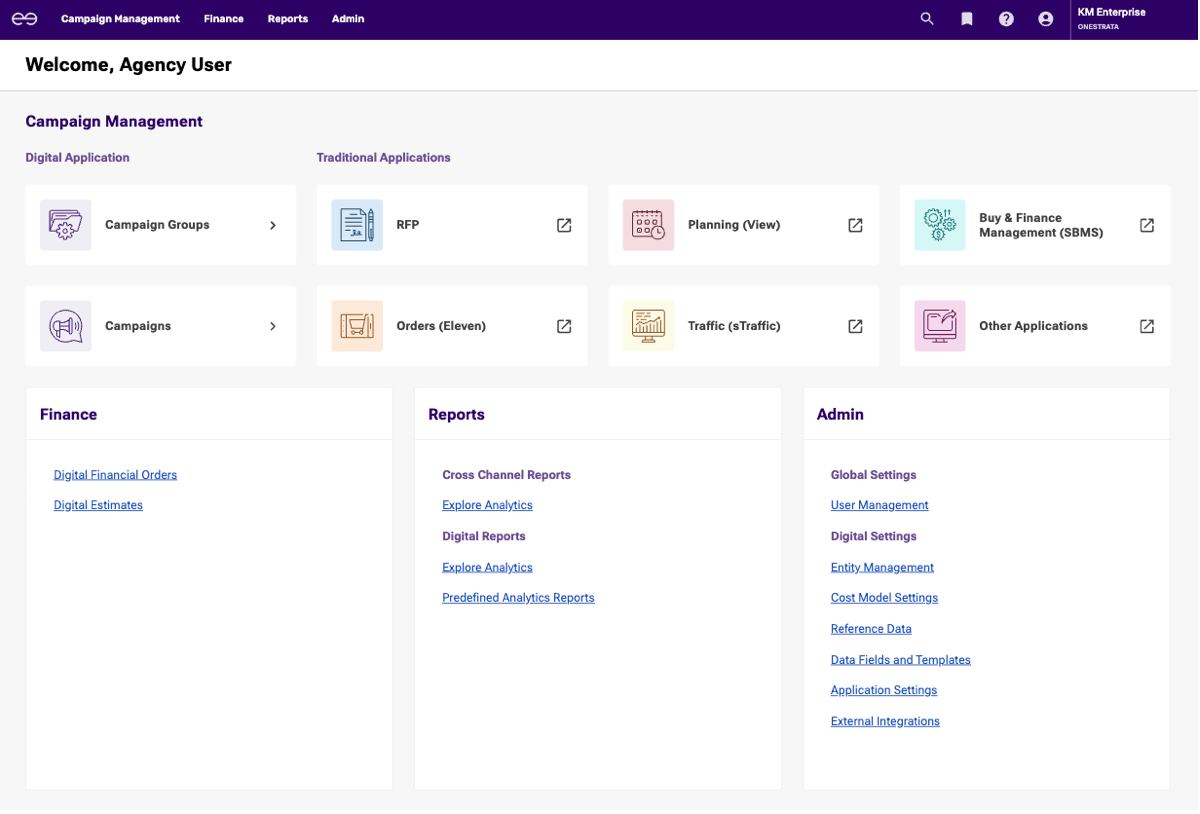
What happens when I click on one of the buttons under "Traditional Applications"?
The following table describes what happens when you click a button in the Traditional Applications section:
| Button | Description |
|---|---|
| RFP | Opens RFP in a new browser tab. |
| Planning (View) | If no AppStream session is currently open, opens an AppStream session and window for View in a new browser tab. If an AppStream session is already open, opens a new AppStream window for View in the current AppStream session. |
| Buy & Finance Management (SBMS) | If no AppStream session is currently open, opens an AppStream session and window for SBMS in a new browser tab. If an AppStream session is already open, opens a new AppStream window for SBMS in the current AppStream session. |
| Orders (Eleven) | Opens Eleven in a new browser tab. |
| Traffic (sTraffic) | Opens sTraffic in a new browser tab. |
| Other Applications | If no AppStream session is currently open, opens an AppStream session and displays the available applications. Under Choose your application to get started, select the desired application. If an AppStream session is already open, re-opens the current AppStream session. To select a different application, click Catalog in the top navigation menu, |
| Anchor | ||||
|---|---|---|---|---|
|
What is the migration process like?
The unified home page Strata Home Page will be rolled out starting in early August October 2025. You'll receive an email when your agency is ready to be migrated.
You'll also receive the following emails:
- One day before the migration: A reminder email about the upcoming migration.
- The day of the migration: A welcome email with login information.
How do I log in to the
unified home pageStrata Home Page for the first time?
You won't be able to access the unified home page Strata Home Page until your agency has been migrated and you receive a welcome email.
For agencies that use Strata's login authentication
If your agency uses Strata's authentication provider (this applies to most agencies)Once you receive your welcome email, you'll need to reset your password before you can log in to the unified home page:
- Click the link in your welcome email to start the password reset process.
- Create your new password.
- Use your new login credentials to log in to the unified home page Strata Home Page at https://us.strata.freewheel.com or http://emea.strata.freewheel.com, depending on your region.
I use the AppStream desktop client. What do I do?
For agencies that use their own SSO authentication
If your agency uses its own SSO (single sign-on) authentication provider, your login credentials are managed by your SSO provider and you do not If you use the AppStream desktop client to access your Strata applications, you'll need to reset your password and change your application portal URL.
Once you receive your welcome email:
- Click the link in your welcome email to start the password reset process.
- Create your new password.
- Open the AppStream desktop client.
- Enter the following application portal URL: https://buygo to https://us.strata.freewheel.com or http://emea.strata.freewheel.com, depending on your region.
- Enter the username provided in your welcome email and click Next. You will be redirected to your SSO provider.
- Enter your SSO login credentials. You will be redirected to the Strata Home PageClick Connect and log in with your new login credentials.
| Anchor |
|---|
|
Once your agency has been migrated, use one of the following URLs to access Strata Agency applications:
| Application | Previous URL | Impact | New URL |
|---|---|---|---|
Strata Home pagePage (all Strata Agency applications) | http://buy.gotostrata.com | Retired. Use the new URL instead. | Depending on your region: |
AppStream desktop client (Amazon AppStream 2.0) | http://buy.gotostrata.com | Retired. Use the new URL instead. | https://buy.strata.freewheel.com |
Eleven | Retired. Use the new URL instead. | ||
RFP | Retired. Use the new URL instead. | https://rfp.strata.freewheel.com/RFP | |
sTraffic | Retired. Use the new URL instead. | https://straffic.strata.freewheel.com/sTraffic | |
OneStrata Digital | Depending on your region: | No change. If you currently use this URL, continue using this URL. | |
AppStream
I use the AppStream desktop client. What do I do for the migration?
For agencies that use Strata's login authentication
If your agency uses Strata's authentication provider (this applies to most agencies), you'll need to reset your password and change your application portal URL before you can use the AppStream desktop client:
- Click the link in your welcome email to start the password reset process.
- Create your new password.
- Open the AppStream desktop client.
- Enter the following application portal URL: https://buy.strata.freewheel.com.
- Click Connect and log in with your new login credentials.
For agencies that use their own SSO authentication
If your agency uses its own SSO (single sign-on) authentication provider, your login credentials are managed by your SSO provider and you do not need to reset your password. However, you'll need to change your application portal URL before you can use the AppStream desktop client:
- Open the AppStream desktop client.
- Enter the following application portal URL: https://buy.strata.freewheel.com.
- Enter the username provided in your welcome email and click Connect. You will be redirected to your SSO provider.
- Enter your SSO login credentials.
Why can't I access Eleven, sTraffic, or RFP through the AppStream desktop client anymore?
Access to Eleven, sTraffic, and RFP has been moved to the unified home page or through the direct URLs listed aboveURLs listed in What are the new URLs?.
I'm opening SBMS in AppStream, do I need to enter my username and password again?
Depending on your SBMS setup, logging in to AppStream and opening SBMS will do one of the following:
- You are automatically logged into SBMS.
- You have additional security requirements and must log in to SBMS separately.
If you have additional security requirements, continue by doing the following:
- For User Name, enter your SBMS username.
- For Password, if you have an SBMS password, enter that password. If you don't have an SBMS password, leave this field blank.
- Optional but highly recommended: Select Remember Me to avoid seeing this login window again.
- Click OK.
I'm opening View in AppStream, do I need to enter my username and password again?
After migrating to the unified home page, when you open View for the first time, you will see a login window.
Continue by doing the following:
- For User Name, select your username.
- For Password, leave this field empty and do not enter your password. Entering a value in this field will cause a login error.
- Optional but highly recommended: Select Remember Me to avoid seeing this login window again.
- Click OK.
How do I switch between SBMS and View in AppStream?
If you're currently in SBMS and want to open View (or vice versa), do the following:
- In AppStream's top navigation menu, click Catalog.
- In the Catalog dropdown, select the desired application.
The selected application will open in a new window in the current AppStream session. To switch between windows, click Windows in the AppStream navigation menu and select the desired window.
You can also open a new window in your current AppStream session by selecting SBMS or View in the unified home page.
Account Management
Do I still need to change my password every 90 days?
For agencies that use Strata's login authentication
No — once . Once you've reset your password and used your new credentials to log in to the unified home pageStrata Home Page, you will no longer have scheduled password expirations.
For agencies that use their own SSO authentication
No. Agencies that use their own SSO (single sign-on) authentication provider do not have scheduled OneStrata password expirations. However, you may need to change your SSO login credentials according to your SSO provider's schedule.
How do I change or reset my password?
For agencies that use Strata's login authentication
If your agency uses Strata's authentication provider (this applies to most agencies), you can change or reset your password directly.
If you remember your current password and would like to change it, do the following:
- Log in to the unified home pageStrata Home Page.
- In the top navigation bar, click the profile icon to open Account Management.
- Select Reset Password.
- Follow the on-screen instructions to change your password.
If you don't remember your current password and need to reset it, do the following:
- Go to https://us.strata.freewheel.com.
- Enter your username and click Next.
- Under the Log In button, click Forgot your password?
- Follow the on-screen instructions to reset your password.
For agencies that use their own SSO authentication
If your agency uses its own SSO (single sign-on) authentication provider, you can only change or reset your password through your SSO provider.
Keep in mind that this would change your password for all of your applications that use this SSO provider, not just for the Strata Home Page.
How do I change my username?
| Info |
|---|
To change your username |
or someone else's username in OneStrata, you must have the Create and Modify Users permission |
. If you don't have this permission, contact your agency administrator or submit a support ticket. |
For agencies that use Strata's login authentication
If your agency uses Strata's authentication provider (this applies to most agencies), you can change your username by following the instructions in Change a User's Username.
For agencies that use their own SSO authentication
If your agency uses its own SSO (single sign-on) authentication provider, you must change your username in two places:
- With your SSO provider. Keep in mind that this would change your username for all of your applications that use this SSO provider, not just for the Strata Home Page.
- In OneStrata, following the instructions in Change a User's Username.
You must change your username in both systems (the SSO provider and OneStrata), otherwise you will not be able to log in to the Strata Home Page.
Troubleshooting
Why can't I open a certain application?
The unified home page Strata Home Page displays all Strata Agency applications that your agency has enabled. However, if your account does not have access to a certain application, that application widget will be grayed out and you cannot open it.
Contact your agency administrator for help adjusting your account's user role.
Anchor Submit-Support-Ticket Submit-Support-Ticket
How do I submit a support ticket?
| Submit-Support-Ticket | |
| Submit-Support-Ticket |
To submit a support ticket, do the following:
- Log in to the unified home page.
- In the top navigation bar, click the information icon (
 ) to open the Support Center.
 - In the Support Center, click Support Request to open Zendesk.
- Enter your username to log in to Zendesk.
- In Zendesk, create and submit your support ticket.
I opened View, why is View asking for my username?
After migrating to the unified home page, you will be prompted to select your username when you open View. This is expected.
To avoid future prompts, select your username and the Remember Me option.| Anchor | ||||
|---|---|---|---|---|
|
If you were automatically logged out of a Strata application, this means that your session timed out after a certain period of inactivity. The system automatically logged you out for security and privacy.
The following table describes the timeout periods:
| Application | Timeout Period |
|---|---|
Strata Home Page / OneStrata Digital | If another Strata application is open in a tab in the same browser window, 12 hours. Otherwise, 1 hour. |
| RFP | 20 minutes |
| sTraffic | 20 minutes |
| Eleven | 2 hours |
| SBMS | 2 hours |
| View | 2 hours |
| AppStream session | 4 hours |
| Anchor | ||||
|---|---|---|---|---|
|
If you launched a traditional Strata application from the Strata Home Page, worked in that application, and then returned to the Strata Home Page to open another application, you may have had to re-authenticate and log in again,
The following table describes the scenarios in which you have to re-authenticate:
| Scenario | Result |
|---|---|
Non-AppStream application to non-AppStream application:
| You do not need to re-authenticate. |
Non-AppStream application to AppStream application:
| You need to re-authenticate. |
AppStream application to non-AppStream application:
| You do not need to re-authenticate. |
AppStream application to AppStream application:
| You need to re-authenticate. |
Any application to any application:
| You need to re-authenticate. |
Note: You can still be automatically logged out of an application for inactivity. For more information, see Why did I get automatically logged out?
Training Resources
| UI Button | ||||||||
|---|---|---|---|---|---|---|---|---|
|
| UI Button | ||||||||
|---|---|---|---|---|---|---|---|---|
|